Right-click image analysis
Analyze web images directly from the browser context menu.
Local-first Chrome MV3 extension
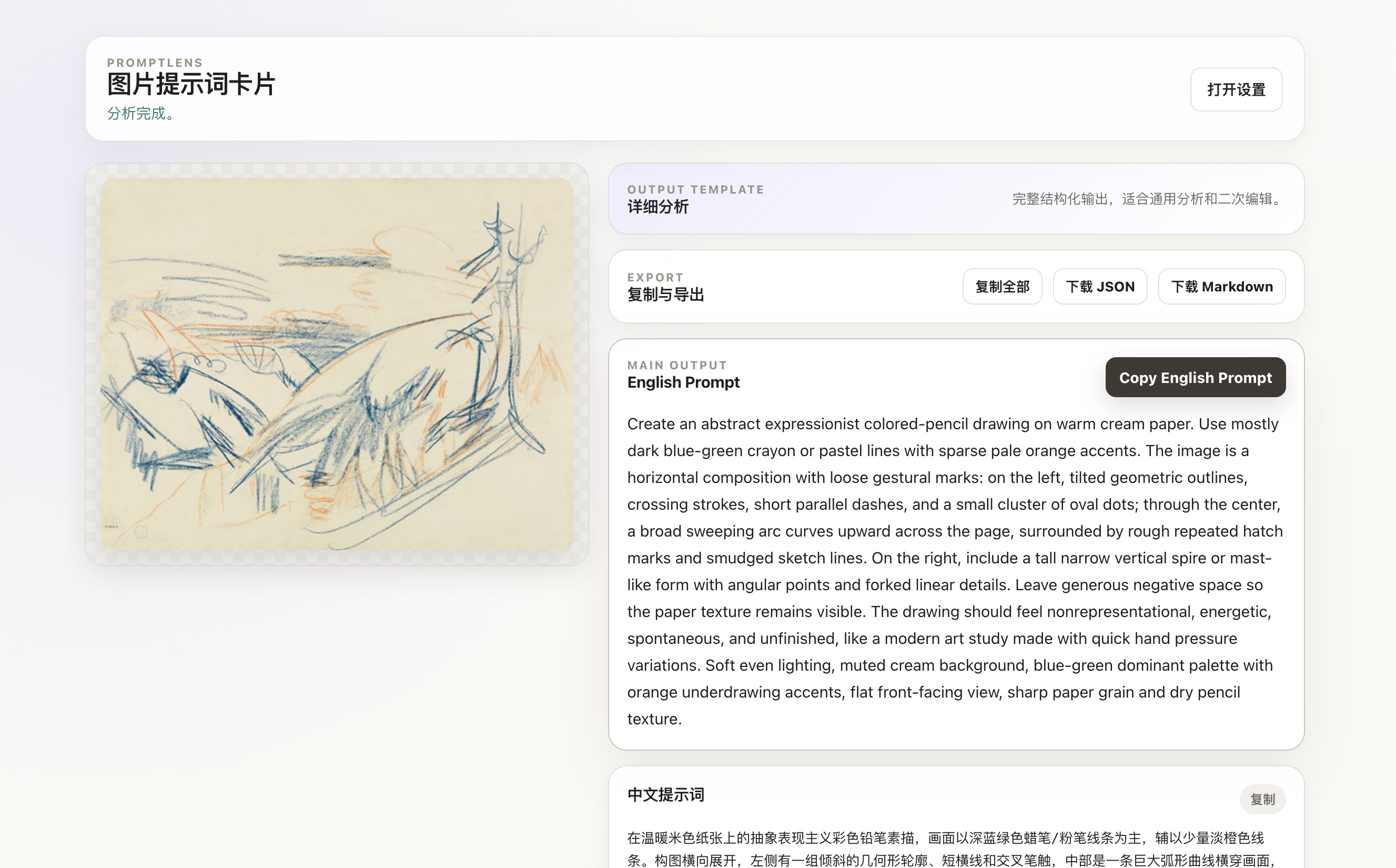
PromptLens is a local-first Chrome extension that analyzes web images or selected screenshot regions with your own OpenAI-compatible or Anthropic Vision API.
Chrome Web Store listing is planned.
Features
PromptLens stays lightweight: no account system, no bundled model service, and no build step.
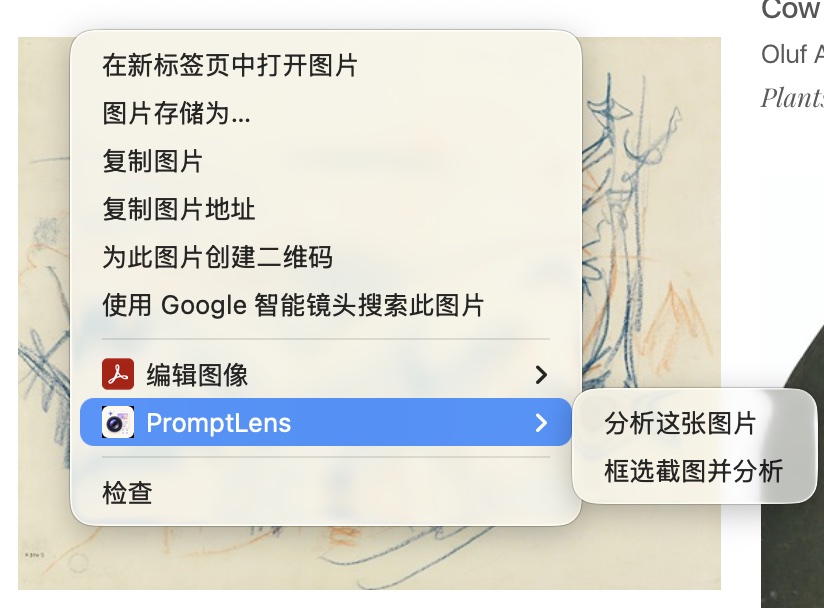
Analyze web images directly from the browser context menu.
Use Alt+Shift+S on Windows/Linux or Option+Shift+S on macOS to select a visible page region when images are protected, embedded, or hard to access.
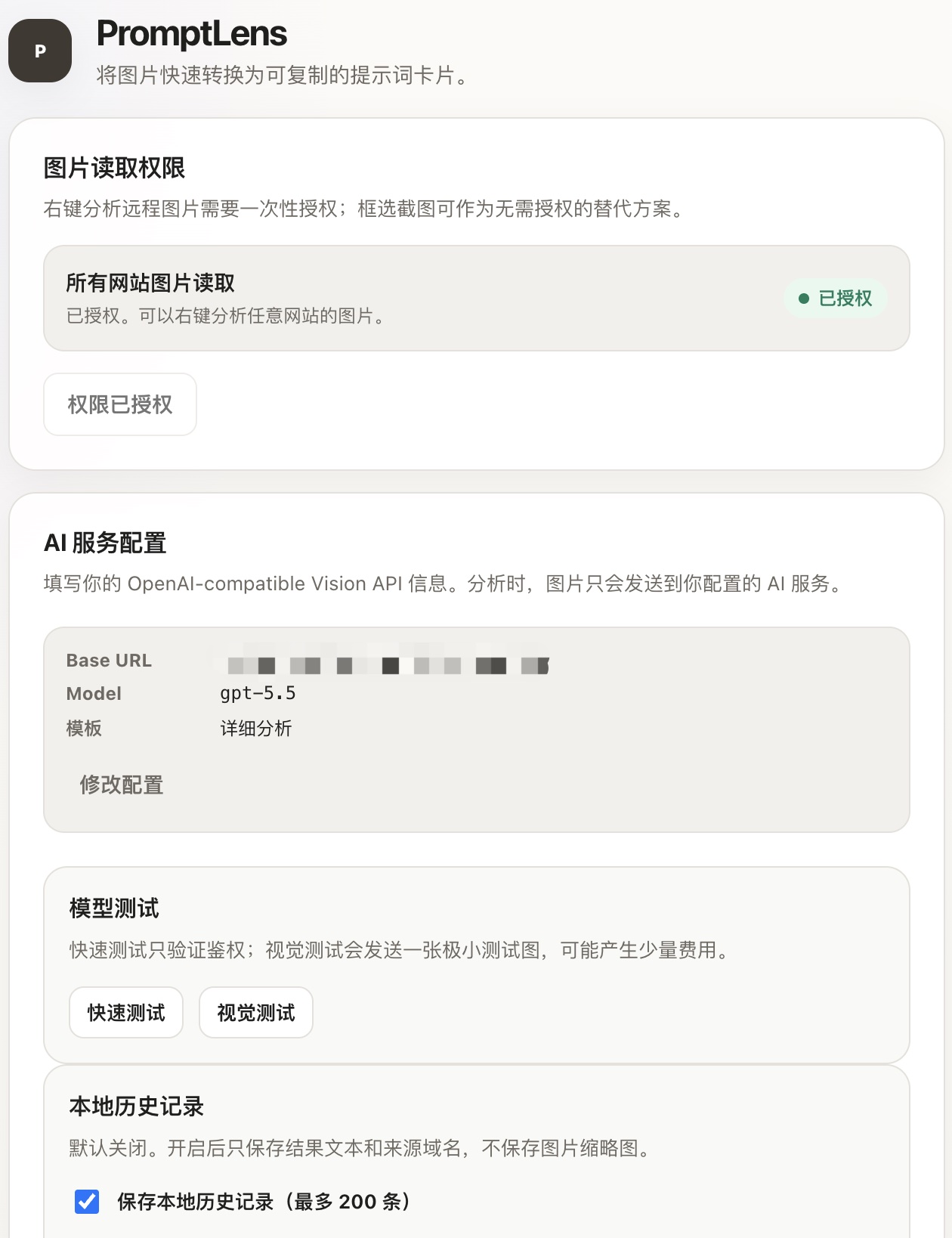
Use an OpenAI-compatible or Anthropic Vision API by configuring the protocol, Base URL, API key, and model.
Get Chinese prompts, English prompts, tags, negative prompts, JSON prompts, and raw JSON.
Turn commercial visuals into owner-friendly summaries, marketing diagnosis, low-cost adaptation briefs, and Markdown case drafts.
Choose Chinese or English UI copy for options, history, and result workflows.
No API key? PromptLens can open ChatGPT, wait for the page to settle, then attempt to attach the prepared local JPEG and fill the instruction for you to review and send manually.
How it works
Right-click a web image or select a visible screenshot region with Alt+Shift+S on Windows/Linux or Option+Shift+S on macOS.
PromptLens validates, crops, compresses, and normalizes the image in your browser.
The prepared image is sent directly to the OpenAI-compatible or Anthropic API endpoint you configure.
Product screenshots
Start from a right-click action on a web image or the current page.
Set the API protocol, Base URL, API key, model, structured-output mode, target platform, and image preferences.
Copy fields individually, export JSON, or download Markdown from the result page. Marketing diagnosis exports can become publishable case drafts.
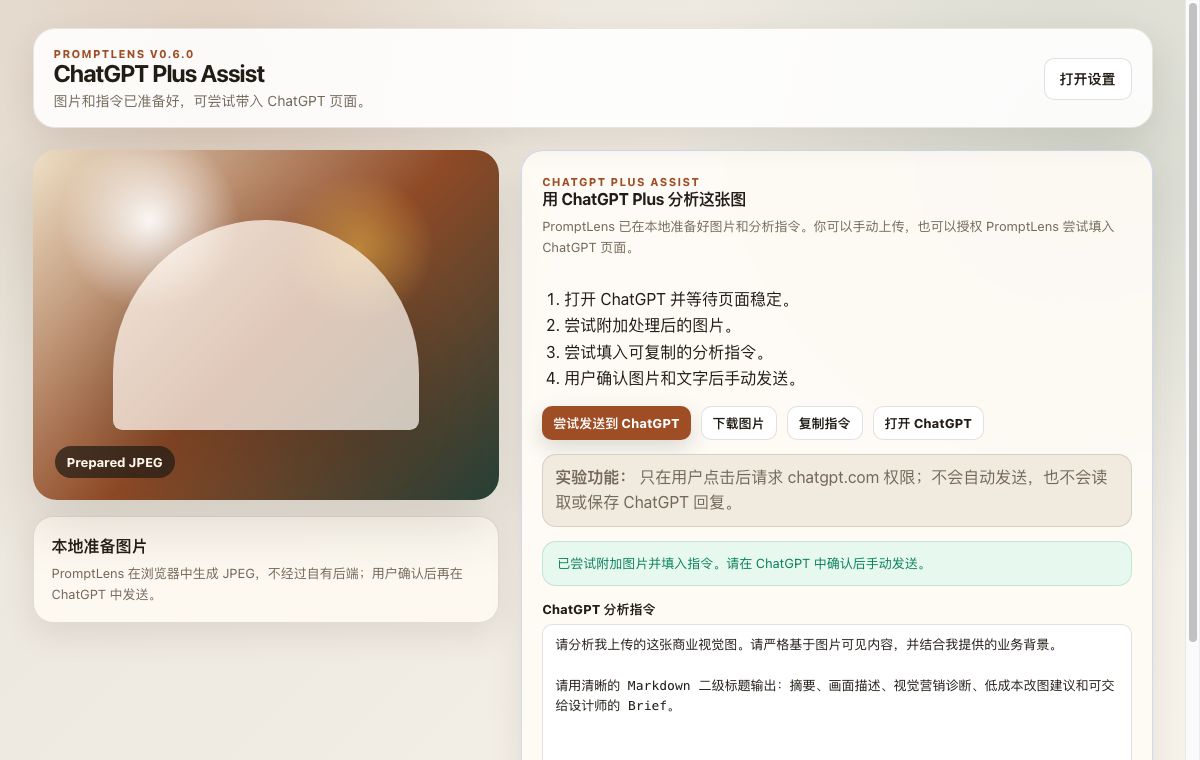
Open ChatGPT, wait for the page to settle, attach the prepared image, and fill the instruction for manual review.
Privacy-aware
PromptLens stores your configuration in your browser. The extension does not run a backend service, does not provide a default proxy, and does not collect telemetry.
Read the full Privacy PolicyPermissions
These permissions match the current Chrome MV3 manifest.
| Permission | Why PromptLens uses it |
|---|---|
contextMenus |
Adds right-click actions for image analysis and screenshot selection. |
storage |
Stores API configuration, templates, local history settings, and temporary input state in the browser. |
activeTab |
Supports current-tab screenshot capture after the user starts screenshot selection. |
scripting |
Injects the screenshot selection overlay into the active page after user action. |
Optional <all_urls> host permission |
Optional site access requested only when needed to read remote images or access the user-configured API origin; it is not a required install-time site permission. |
User-triggered: activeTab and scripting are used only when you start screenshot selection.
No background scanning: PromptLens does not continuously inspect pages in the background.
Optional site access: You can refuse remote image read permission and use screenshot selection instead.
Install
Use the latest release package or follow the source install instructions.
Download from GitHub ReleasesChrome Web Store listing is planned.
chrome://extensions.FAQ
No. PromptLens is a frontend-only extension. You bring your own OpenAI-compatible or Anthropic Vision API endpoint, API key, and model.
No. PromptLens does not operate a backend server. When you trigger analysis, the selected image data is sent directly from your browser to the API endpoint you configure.
Your API key is stored locally in Chrome extension storage. It is not sent to PromptLens, but browser-local storage is not a hardware security vault. You should only use this extension on devices and browser profiles you trust.
Local history is off by default. When enabled, it stores text results, source domain, source image URL, page URL, template metadata, and structured output in IndexedDB. It does not save image thumbnails. Source URLs may include signed query parameters or private path details, so keep history disabled or clear it if you do not want that local metadata retained.
Remote image analysis may require optional permission to read image URLs from websites. This is not a required install-time site permission. You can skip this and use screenshot selection instead.